Guide / The collection page
The collection page builder
Arrange blocks in rows on a 12-column grid: what goes where, and how wide.
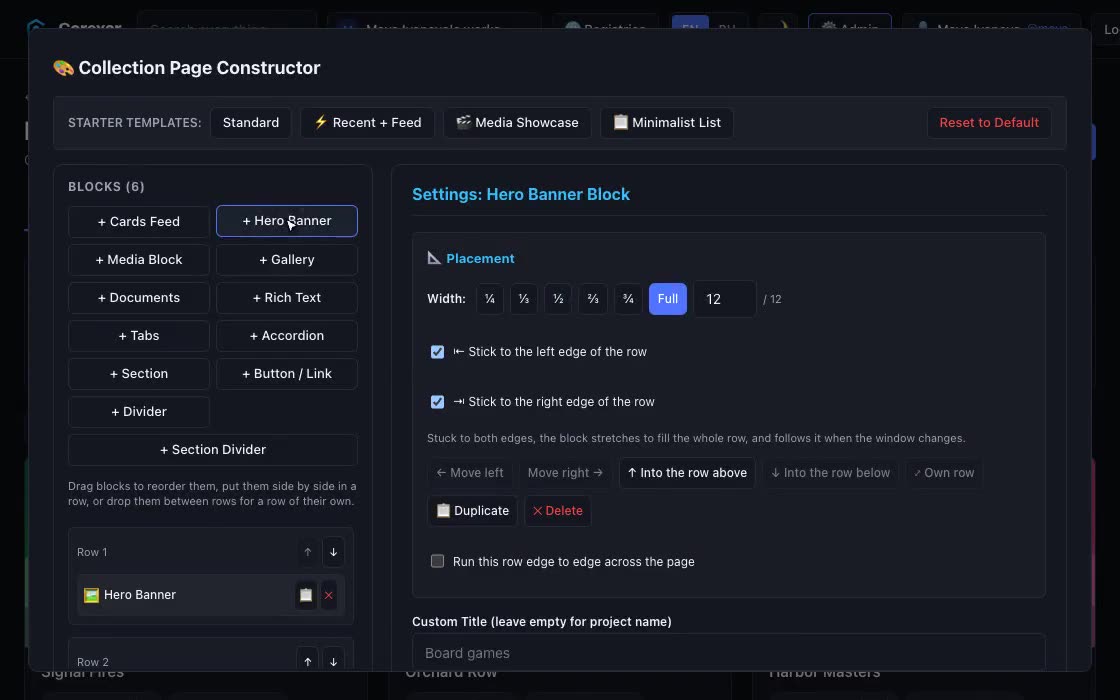 Hover to play
- Open the collection and press Customize Page (needs the “Edit collections & schema” permission).
- Start from a template if you like: Standard, Recent + Feed, Media Showcase or Minimalist List. A template replaces the current layout after you confirm.
- Add blocks with the buttons on the left. Each one lands in a row of its own, at the bottom.
- Arrange them (below), open a block to set it up on the right, and press Save Page Layout.
Rows and placement
The page is a stack of rows; a row holds one or more blocks side by side on a 12-column grid. Drag a block onto another block to put it before that one in the same row, onto a row to add it at the end, or into the gap between rows to give it a row of its own. The Placement section of a block does the same with buttons: Move left, Move right, Into the row above, Into the row below, Own row, Duplicate and Delete.
- Width: a preset (¼, ⅓, ½, ⅔, ¾, full) or a number of columns out of 12. In a row of several blocks, the neighbour takes what is left, so a row stays filled.
- Stick to the left or right edge: a block stuck to both edges stretches across the row and follows it when the window changes.
- Run this row edge to edge across the page: the row goes past the page margins, handy for a banner.
- On a narrow screen the blocks of a row stack one under another.
Note. The same appearance settings as on the entry page (colours per theme, padding, rounding, shadow) are available for every block here.