Guide / Chapters and episodes
Reading and watching parts
How the parts block presents chapters, episodes and manga pages, and what its settings change.
 Hover to play
Text: pages that load in pieces
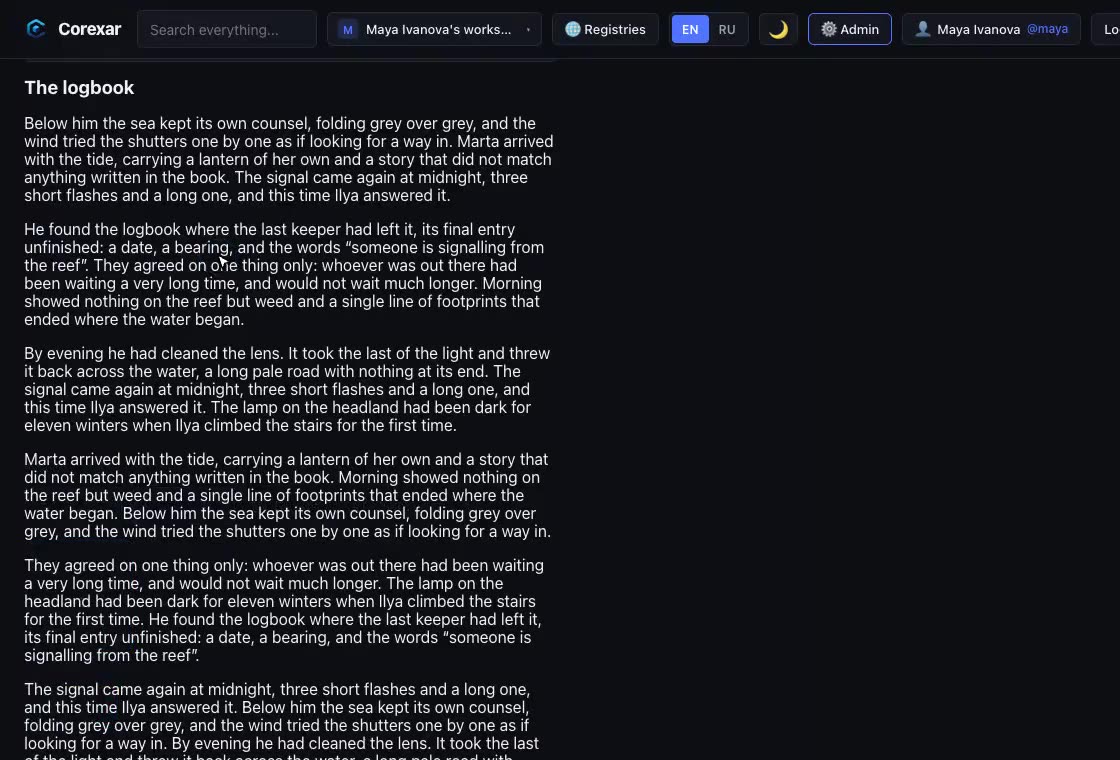
A chapter of text is not fetched whole. Corexar loads the list of parts first and the text of one part when it is opened, and splits long text into pages of a size you set (“Characters per page”, 0 for no paging). Turning a page scrolls back to the top of the page. At the end of a chapter, Next goes on to the next chapter even if it lives under another parent; at the start, Back goes to the previous one.
How the parts are offered
| Choice | What it gives |
|---|---|
| List | All parts as rows; click one to open it. |
| Dropdown | A chooser that opens downward, right in the page, with no inner scrollbar. |
| Horizontal strip | A strip of parts to scroll through sideways. |
| Numbered pages | Parts split into numbered pages (“Parts per page”), for very long lists. |
| Reader (opens the first part) | The first part opens at once, with Back / Next between parts. |
For a tree, the top level and the level below can be set separately: for example a strip of seasons above a list of episodes. “Expandable” keeps the block collapsed until opened, then lets it grow downward instead of showing a scrollbar.
Episodes and pictures
- A part with a video shows a player. Choose its style in the block (platform, minimal, compact or the browser’s own).
- A part with pictures, such as a manga chapter, shows them one under another (“One long scroll”) or one at a time (“One image at a time”).