Players, previews and full screen
Choose how video and audio look, preview PDFs on the page, and open anything to the full window.
Player style
Every block that plays video or audio has a Player style setting, so the player can match the page instead of the browser’s default controls:
| Style | Looks like |
|---|---|
| Platform | Full controls in the interface’s own look: play, seek, time, volume, speed, full screen. |
| Minimal | Play, seek and time only. |
| Compact | A play button and the time; for video a large button over the picture. |
| Browser’s own | The controls your browser draws. |
PDFs on the page
The Document block can show the PDF itself: tick “Show the document itself”, and the block shows the browser’s viewer, sized to the block or to a height you set. Choose “Only the first page, still” for a picture of the first page with no toolbar and no scrolling; a click opens the full viewer. A Document set can show its files as a grid of such first pages.
Full screen
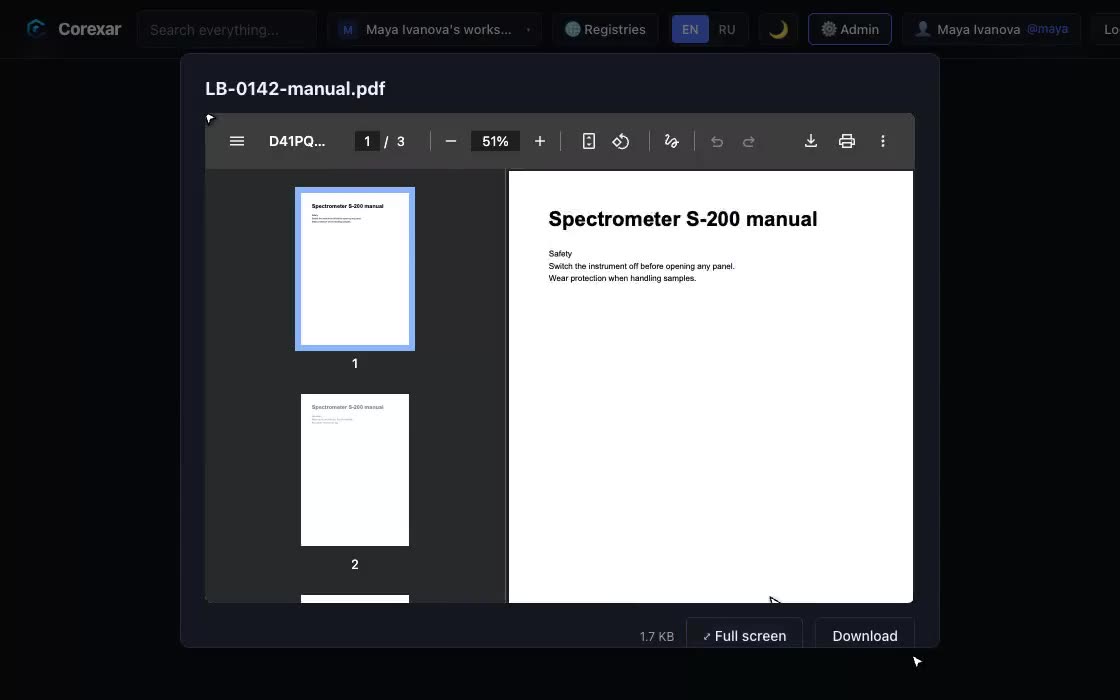
Any file you open in the viewer has a Full screen button next to Download. It takes the viewer to the whole window; Esc steps back, and a second Esc closes the viewer.
 Hover to play